Thunderbird Themes
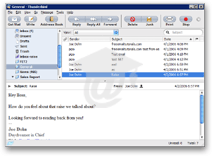 Thunderbird comes with built-in support for Themes (or "Skins"), which allow you to give Thunderbird the look you want among the plethora of available themes.
On the left, here is Thunderbird themed with Apple Mail Tiger interface, by contributor Toyo Snow, a very convincing emulation of the Mac Mail email client.
( Thunderbird Tiger 2: The Theme  | The Creator )
Downloading New Themes for Thunderbird
Thunderbird does not come with any theme, (other than the one called "Thunderbird Default.") New themes can be downloaded, for free, from the Mozilla website.
 To obtain themes, Go to Tools > Themes, and the Themes dialog will pop up.
The left pane shows you the themes you already have, (at least one.) To use a theme you already have, select it and click the Use Theme button. You will then need to close the Themes dialog, and restart Thunderbird, before seeing Thunderbird with the new theme you picked.
To download new themes, click the Get More Themes link in Thunderbird's Themes dialog. It points to a section of the Mozilla website from which you will be able to browse themes available for downloads.
Tip: for lesser known themes and independently developed ones, also consider checking out the MozDev.org website (opens a new window), and look for theme publishers that include the Thunderbird icon.
Caution: Pay attention to the version of Thunderbird for which the theme was developed, certain themes will not run under the latest version. If you try to use a theme that doesn't work in the current version of Thunderbird / the one you happen to be using, you will receive an error message to that effect.
By the same token, you can check on updates for the themes you already have by using the Find Updates button, from Thunderbird's Themes dialog. It will crawl the Mozilla website for updates for the themes you already have installed.
Installing a theme in Thunderbird
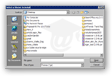 You need to download a theme you liked, and save it on your computer. Then, from Thunderbird's Themes dialog, click the Install Theme button, which will open a dialog box as shown left. Navigate to your download location, select the theme, and click Open.
Confirm the installation, and Thunderbird will add the latest theme to the list on the left pane. Select Use Theme, close the Themes dialog, and restart Thunderbird. That's it! (In newer versions of Thunderbird, notice that the themes dialog will display a "Restart" button once a theme has been successfully installed.)
The most elegant themes available for Thunderbird in Windows 7, in our opinion, are Leopard Mail Default Aqua and Leopard Mail Default Graphite - make sure to try them out. If you want to use the "Modern" theme in Thunderbird 3.X, your only choice at this point is to switch to using SeaMonkey Mail as email program (which comes bundled with the Modern theme).