Create an email signature in Mozilla Thunderbird: HTML or plain text
Thunderbird can automatically append a signature to every email you send. Unlike some email clients, Thunderbird lets you specify a signature per account. If you use two or more email accounts, this is a great time saver compared with hand-picking the signature depending on the occasion. 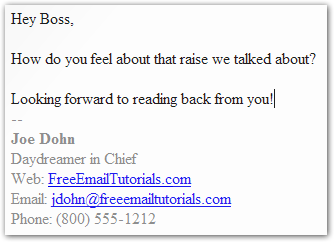 The two hyphens and what comes below are added automatically to every outgoing email. As you can tell, Thunderbird supports more than plain text signatures, and actually lets you use HTML, the formatting language used to create web pages like the one you're reading.
Thunderbird supports plain text signatures, which contain no formatting information, and HTML signatures, which allow you to add formatting information.
Create an Email Signature
First, you will need to create a file with which Thunderbird can work. Thunderbird will not accept Microsoft Word or PDF files, (even if Word files are saved as RTF, Rich Text Format.) You can create a signature in Notepad (or any plain text editor), or supply an HTML file.
Create an HTML Email Signature in Thunderbird
HTML is the formatting language that is used to create web pages like this one. Unlike plain text signature files, using HTML signature files allows you to define colors, text formatting (bold, italic…), and insert email or website links.
For Joe Dohn's signature, we created an HTML file with the following code:
To create an HTML signature in Notepad, use HTML code similar to the above, and save the file as HTML. Just replace plug in your personal data instead of Joe Dohn's. ( <br> stands for "line break" )
Attaching an Image to Your Email Signature
Thunderbird allows you to include a graphic file in your email signature; to make sure that the image will be embedded in your email, and appear to recipient, you do need to set the proprietary "moz-do-not-send" attribute to "false" inside the HTML tag. Example:
<img moz-do-not-send="false" src="file:///C:/image.gif" alt="Signature"> Joe Dohn
<img moz-do-not-send="false" src="http:///domain.com/image.gif" alt=""> Joe Dohn
This will ensure that Thunderbird does in fact include the image file in your email signature; if the moz-do-not-send attribute is set to "true", or omitted altogether, Thunderbird will ignore the image. A big thanks to Vick for raising the issue!
Whether you use a local image (on your computer) or a local image (online), you need to explicitly include the full image path in the signature file.
Attach the Signature File to Your Email Account
 To attach the signature to your email account, go to Tools and click Account Settings…. Highlight the email account for which you want a signature.
Click the Choose… button, and navigate to the file you just created, and click Ok to dismiss the Account Settings dialog.
From now on, each email you send using this email account will automatically contain the content of the signature file you created.
The Two Hyphens Above Your Email Signature in Thunderbird (--)
Thunderbird's two-hyphen-above-signature qualifies a FAQ (frequently asked question). Many don't want these two hyphens to be inserted above their email signature.
Thunderbird automatically adds "--" (two hyphens / dashes / minus signs) above the content of the email signature file ("signature block") to follow an Internet standard ("convention"). This is also the case with HTML signatures.
There is currently now way to prevent Thunderbird from inserting two hyphens above your signature block, apparently not even with the about:config editor.