What version of Windows do I have?
 What version of Windows am I running? This tutorial explains how to find out which version of Windows you are running. What version of Windows you run often determines which programs can be installed on your computer, or helps IT staff and friends help you troubleshoot Windows problems. This information is also useful when you are about to get new hardware or software, whose configuration may only be compatible with some versions of Windows. Let's get started, and figure out what version of Windows you have installed on your PC.
Major Microsoft Windows Versions and editions
Here are the main Windows versions for desktop computers (excluding Windows versions for mobile device); your PC probably runs one of these. (The end of this tutorial will explain the subtle distinctions you may need to know about between Windows versions and editions, 32- vs. 64-bits, service packs, etc.)
Tip: a windows "version" typically has several "editions" - If you are running Windows XP (as windows version), your Windows edition can be XP Pro, XP Home, etc. In most cases, answering the question "What version of Windows do I have?" expects an answer that includes both the Windows version you are running, as well as its edition.
- Major versions of Windows for PCs (Desktop computers, laptops, netbooks)
- Windows NT
- Windows 95
- Windows 98
- Windows 98 SE ("Second Edition")
- Windows ME ("Millennium Edition")
- Windows 2000 "Professional" (but does not include another edition like "Home")
- Windows XP (Sometimes referred to as "Windows 2002") — includes Windows XP Professional, Windows XP Home, Windows XP Tablet PC Edition, Windows XP Media Center Edition, Windows XP Starter (only in some countries)
- Windows 2003 (a Windows edition for server)
- Windows Vista — includes (edition galore) Windows Vista Starter (only some markets), Windows Vista Home Basic, Windows Vista Home Premium, Windows Vista Business, and Windows Vista Ultimate; "Windows Vista Enterprise" was only available to large corporate clients, and -feature wise- lies somewhere between Windows Vista Business edition and Windows Vista Ultimate.
- Windows 2008, and Windows 2008 R2 (both editions designed for servers)
- Windows 7 — includes the following editions: Windows 7 Starter (typically for netbooks), Windows 7 Home Premium, Windows 7 Professional, and Windows 7 Ultimate edition. "Windows 7 Home Basic" is only available in some countries; Windows 7 Enterprise, only to large corporate clients.
Since Windows XP, most editions of each version of Windows are available in "32-bits" or "64-bits".
Find out which Windows version you are running on your PC
 What version of Windows do I have? The easiest way to determine which version of Windows you are running is to locate the My Computer icon on your desktop. Give it a right-click, and choose Properties from the context menu that opens, to access your system properties.
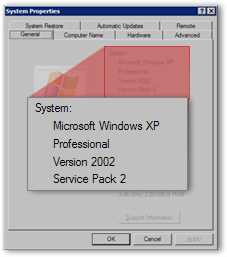 The System Properties will open. Depending on the version of Windows you have, there will be more or less tabs than shown on this screenshot.
However, regardless of the version of Windows you are running, the selected tab should by default be the one that lists your system's properties and technical support information, including at the top the main Windows version running on your computer.
In this screenshot, the Windows version spreads across two lines; it is Windows XP Professional. "Professional" indicates which "edition" of Windows XP is running. Further below, "Service Pack 2" indicates that the Service Pack 2 ("SP2") has been installed.
Windows "Versions" vs. Windows "Editions"; Bits; Services Packs
Before continuing, we should add that there are "Windows versions" and "Windows editions" - "Windows 7" is the version of Windows, but "Windows 7 Home Premium", "Windows 7 Professional", and "Windows 7 Ultimate" are three "editions" of the same version of the Windows operating system, namely Windows 7.
So, in doubt, when someone asks you what version of Windows you have, you should give in answer both the Windows version and edition ("I run Windows Vista Ultimate"). Though in most cases, knowing which version of Windows is installed on your computer will be enough information for troubleshooting, determining program compatibility, etc.
"32 Bits" or "64 Bits"?
Hang on to your hats, there is more: recent versions of Windows, and their respective editions, can also come in one of two flavors — 32-bit or 64-bit. Just know that this information will also be displayed on the system information page.
Windows Service Pack Information ("SP")
In many cases, Service Pack information is important, since it represents the "major upgrades" you or your IT Department has applied on your PC. "Software Requirements" often include Service Packs that must at least be installed on your computer.
 For example, system requirements for Microsoft Outlook 2003 are Windows XP SP2 and later, or Windows 2000 SP3 and later. Again, SP stands for "Service Pack." If you were running Windows 2000 SP4, you could use Outlook 2003.