Show or hide desktop icons in Windows XP
By default, Windows XP displays all the icons on your desktop: these include special icons like the Recycle Bin, Internet Explorer, Network, etc. - but also folders and files you saved on the desktop, as well as any shortcuts you or program installers placed on the desktop. This tutorial shows you how to customize the desktop in Windows XP to either show your all icons on the desktop (default behavior), and how to hide icons on your desktop, so that your desktop wallpaper or solid background color is featured in all its glory.
Hide desktop icons in Windows XP
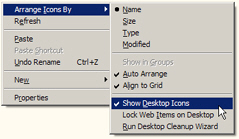 To hide all the files and icons visible on your desktop in Windows XP, minimize all your windows and right-click on an empty are of the desktop. From the context menu that appeared, click on Arrange Icons By to reveal the corresponding submenu.
Near the bottom of the submenu, notice the menu item that reads "Show Desktop Icons". Windows XP has this setting enabled by default, so that you can easily access all files and shortcuts on your desktop by minimizing your windows. To hide your desktop icons, simply click on the Show Desktop Icons menu item: this will uncheck it, and instruct XP not to show the content of your desktop above the taskbar and on top of your wallpaper.
How to you access your desktop files when icons are hidden?
Good question: what you see when all your windows are minimized is actually the content of a special folder called the Desktop. You can open this folder and browse its content like any other folder in Windows Explorer.
To quickly view the content of your desktop as a regular folder in Windows Explorer, open the Start Menu and click on Run: this will launch the Run dialog, in which you can type various commands for Windows XP. In the text field, type desktop, and hit Enter. This is a quick way to access your desktop's content even if the icons are set to be hidden.
Restore or show icons on your desktop
Whether you hid your desktop icons earlier on, or someone played a prank on you at the office, here is how you display back the icons on your desktop - by following the same steps we did to hide desktop icons.
To show all the files you currently have on your desktop, right-click somewhere on the desktop and choose Arrange Icons By from the menu that opened. This will deploy a submenu: locate and click on the menu item labeled "Show Desktop Icons". This will make visible all the icons you thought had disappeared from your desktop!
Hiding desktop icons to boost Windows XP performance
Whether you are running Windows XP on an older computer, or whether you have hundreds of files on your desktop - these two factors can contribute to slowing down the responsiveness of Windows XP. Since you now know how easily you can show or hide your desktop icons, keep in mind that hiding files and shortcuts on your desktop will help make Windows XP faster.
(And you can always access your desktop quickly by going to Start > Run, typing desktop in the text area, and hitting Enter to open the desktop in Windows Explorer.)