Setting Email Sound Options in Windows XP
 Windows' Control Panel lets you configure sounds your computer plays whenever a certain event occur. One such event is the arrival of new emails in Microsoft Outlook or Outlook Express. Other email clients are not integrated with Windows the way Outlook or Outlook Express are (both of which are, like Windows, created by Microsoft). As a result, the new email sound you set in Windows will only affect Outlook or Outlook Express.
Configuring the New Email Sounds in Windows (XP, 2000, ME, …)
New email sounds and other Windows event sounds are managed from the Control Panel.
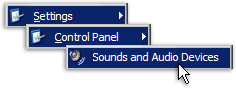 To setup or configure Windows Sounds (located in the Windows Control Panel), click the Windows Start button and go to Settings > Control Panel > Sounds and Audio Devices.
 Depending on your Windows settings, the Control Panel may not expand, but instead open the Control Panel.
If this is the case, simply double-click the Internet Options icon.
Configuring Sounds and Audio Devices Properties in Windows
The New Email Notification sound is a particular case of event-triggered sounds in Windows. Most email programs use their own settings for email sounds, but Microsoft Outlook and Outlook Express will use the Windows New Email Notification sound.
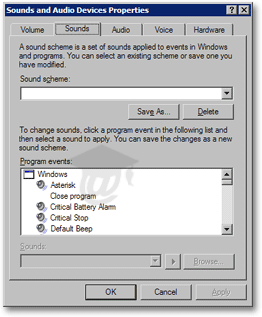 The Sound and Audio Devices Properties window will open, with the Volume tab selected by default.
Click the Sounds tab to configure Windows' New Mail Notification Sound.
Scroll down until you see the New Mail Notification Sound item. If a speaker icon is displayed on its left, the new mail sound is already configured (as shown below).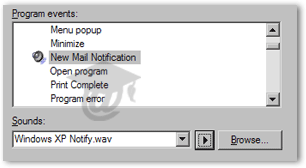
To preview the current Windows' new email sound, select the New Mail Notification item and click the play button.
Choosing and Previewing New Mail Notification Sounds
To set or change a Windows sound for new emails (Outlook Express and Microsoft Outlook only), select New Mail Notification, and click the Browse button to pick one of the sounds supplied with Windows (inside the C:\Windows\Media\ folder for Windows XP, or C:\Windows\Sounds\ for Windows 98, 98 SE, and Windows ME).
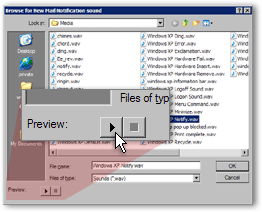 After clicking the Browse button, the Browse for New Mail Notification sound dialog will open.
If you are using Windows XP, you can preview a sound by selecting a sound (just a regular left click - double-clicking would select the sound), and clicking the Play arrowhead button under Preview, at the bottom left of the dialog.
Once you are satisfied with your New Mail Notification sound, click OK to validate your choice.
New emails received in Outlook Express or Microsoft Outlook will from now on play the sound you selected!
Using a Custom New Email Notification Sound
 Windows ships with about 50 WAV sounds (WAV is the sound file format). But nothing prevents you from using your own email sound; from the Browse for New Email Notification Sound dialog, pick any WAV file you like on your computer, and Windows will play it when new emails arrive in Outlook or Outlook Express.
While Windows stores its sounds in a specific folder (see above), you can use WAV sounds from any folder on your PC.
Remember that if you move or delete the sound file, Windows will no longer be able to play it (until you show Windows the sound file's new location.)