Setting the default email client in Windows Vista
 Windows Vista introduces a different way to select default programs on your computer, easier than Windows XP for example; Windows Vista now includes a dedicated Set your default programs applet in the Control Panel. In this tutorial, you will learn how to set your default email program in Windows Vista. If you are using Windows XP, please see how to set your default email client on Windows XP.
Launch Windows Vista's Default Program Control Panel
Like other Windows Vista configuration settings, the Set your default programs is located inside the Control Panel (which can be launched by typing its name in the start menu).
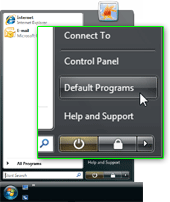 But Windows Vista has a dedicated Default Programs button on the Start Menu, which saves you quite a few steps; you can still find go through the Control Panel, but we will directly click the Default Programs button.
Like Windows XP, you can access the Default Programs applet in Windows Vista from Internet Explorer: go under Tools > Options, and the Internet Options dialog will open; click on the Programs tab, and click the Set Programs button. This will launch Windows Vista's Default Programs window: click on the link which reads "Set your default programs", right below Choose the programs that Windows uses by default.
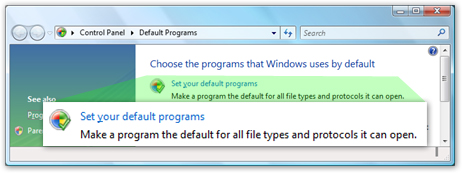
Click the first link ("Set your default programs"): it will open the Set default program window, and a listing of applications you can use for web browsing, email, etc.
Set Your Default Email Program in Windows Vista
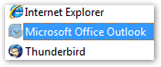 In the listing of possible default email programs, choose the one you would like to handle email actions by default. You'll still be able to use other email applications, but the default mail handler will open when you click an email link on a web page, for example.
In our case, we will choose Outlook 2007 as Windows Vista's default email client; to do so, we select the Microsoft Office Outlook entry in the available default programs listing, and click the Set this program as default button.
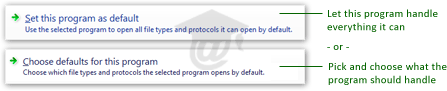
Confirm Your Default Email Application
 Once you have made your choice, click the Set Default Programs window's Ok button; you will be back to the Default Programs window, which you can now close.
From now on, Windows Vista should use the email application you selected by default. Click this email link: the default email client you selected should automatically open a blank email window.
For more information, please see our Windows Vista Tutorial.