Set the default browser in Windows XP
 This tutorial shows how to set Windows XP's default browser. Your default web browser is the program that Windows XP uses, by default, when you open web pages or websites. Internet Explorer is the browser that ships with Windows XP and is automatically set as the default browser. But any alternate browser you download (like Firefox) can be set as the Windows default web browser. Most web browsers include internally the options to set themselves as default browser without going through Windows XP. Recent installers of the Firefox and Opera web browsers can optionally set themselves as the operating system default browser during the installation process.
Launch the Default Program Control Panel in Windows XP
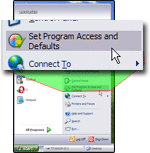 It is possible to set the default web browser in Windows XP by going through Internet Explorer's Options, like we did in the tutorial explaining how to set Windows XP's default email program. But this approach only works if you want to set Internet Explorer as the default web browser; if you want to set Firefox, for example, as XP's default browser, we will have to go through the Set Program Access and Defaults settings in Windows XP.
 Open the Start Menu, and click Set Program Access and Defaults: this will open the Add or Remove Programs window, with the Set Program Access and Default button selected on the left.
Below the "Choose Configuration" header, four types of program defaults are available: Computer Manufacturer, Microsoft Windows, Non-Microsoft, and Custom.
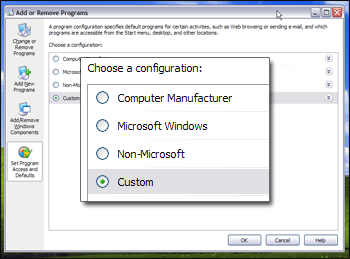
 Click on the Custom double arrow, and Windows XP will list all the default programs options it found for Default Web Browser, Default E-mail Program, and Default Media Player: under "Choose a default Web browser", you will see an entry for each application Windows XP has recognized as being a web browser. The screenshot below shows the settings for one particular computer, and what you see will vary, based on installed browsers.
Select a default browser for Windows XP
Check the appropriate checkbox next to the web browser you would like setup as Windows XP's default browser; the switch to another default browser is not permanent of course, and can be changed to another web browser (newly installed or pre-existing) in the future, in the exact same way (through XP's "Set Program Access and Defaults"). 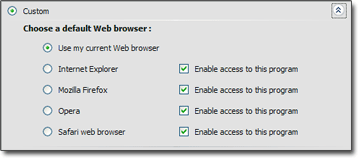 Don't forget to confirm your new default browser by clicking the OK button; next time you open a website, it will launch in the default browser you selected.
Testing the default browser settings in Windows XP
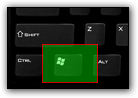 Here is a quick and easy way to test if your change of default web browser has been applied successfully: press the Windows logo key on your keyboard and press R at the same time: this will open the "Run" dialog.
This small window lets you type commands, like program names or aliases, as well as enter "URLs" (or web page addresses).
Inside the text input field, type an internet address (like www.google.com) and hit the Enter key: Windows XP will automatically recognize the text that starts with "www" as a website address, and pass the command to the system's default web browser.
If Windows XP opened the website in the application you chose as default browser, you just confirmed that your change of settings was successfully applied!