Change wallpaper or desktop background color in Windows XP
 You can easily customize the desktop wallpaper, or desktop background picture, that is visible behind opened windows, or when all your windows are minimized. This Windows XP tutorial explains how to change your wallpaper, how to adjust the position and resize settings of the desktop background, and how you can disable wallpaper picture on the desktop altogether by showing you how to set your desktop background to a solid color (which has noticeably positive effects on the speed and performance of Windows XP running on system with low amounts of memory (RAM), or a slow processor).
Change the desktop wallpaper picture in Windows XP
To customize your desktop wallpaper picture in Windows XP, right-click on the desktop and choose Properties to access the Display Properties dialog. Click on the Desktop tab that includes options and settings for the desktop wallpaper pictures and background colors (solid background color for the desktop is discussed below).
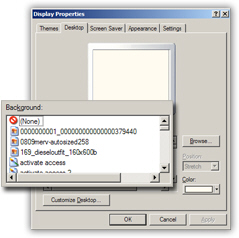 Under the Background scrollable section, Windows XP displays a pre-selection of wallpapers you can use for your desktop: these pictures include the desktop wallpaper images XP ships with, as well as pictures you have saved inside the My Pictures folder of your profile (Windows user account).
To pick a picture as desktop wallpaper, click on one of the pictures listed, and click the Apply button to test your desktop with that image. Depending on the image dimension, you may tweak the display of the image.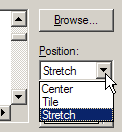 Under Position, a dropdown menu includes the following choices for positioning your desktop background: Center, Tile, or Stretch.
Use Center when the desktop wallpaper graphic is close in dimension to your screen resolution (you can see over 90% of the picture when the desktop background is centered).
Configure desktop background position and wallpaper resizing
Set the wallpaper position to Tile when you want a small picture as background, and you want it to repeat across the screen: except for pattern backgrounds, this option does not often look very appealing.
If you choose Stretch, Windows XP will enlarge the image so that it fits the dimension (screen resolution) of your screen. Here to, depending on the image you picked, the result may not be that compelling.
Keep in mind that while you are customizing the desktop wallpaper picture and the background positions, you can at any time click on the Apply button to get a real preview of the desktop background settings you just configured.
Once you are satisfied, click OK to accept your new desktop background settings and close the Display Properties dialog. The remainder of this tutorial shows you how to set a solid color on your desktop, instead of an image.
Use a solid background color on your desktop instead of a wallpaper picture
While pictures as desktop wallpaper are nice, switching at times to a pain, solid color as desktop background can be soothing. Using a solid color instead of a picture can also improve the performance of Windows XP, since displaying a solid color requires less resources from your graphics card than an actual image.
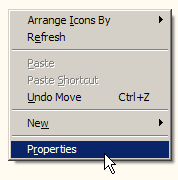 To customize your desktop background to show a solid color, right-click on an empty area of the desktop, and choose Properties. from the context menu.
Windows XP will open the Display Properties dialog, with the Theme tab selected by default; click on the Desktop tab to reveal the background and wallpaper options. Under Background, scroll to the very top, and select "(None)" - this instructs Windows XP not to display an image on your desktop, and rely instead solely on the solid background color settings you are about to configure.
Customize the desktop's solid background color
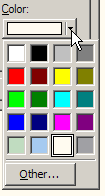 On the lower right corner of the Desktop tab, you will find a button-dropdown menu combo that displays the current color: click on the Color button to reveal the default color swatches.
Windows XP ships with 15 solid background color swatches for your desktop (just click on any of these color swatches to use them as desktop background color). This tutorial goes on to explain how to pick a custom color for your desktop.
Click on Other to load Windows XP's color dialog: it displays under Basic colors a set of colors you can use as base color to customize further, or use as is. The color spectrum and color value slider on the right, on the other hand, give you full freedom to create a custom color for your desktop background: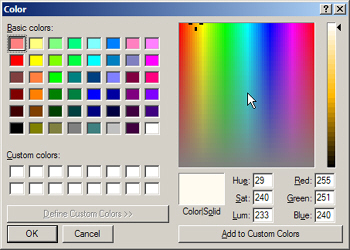
Slide your cursor on the color spectrum until you find a base color you like for your desktop, then adjust the vertical slider on the right edge of the Color dialog. Once you are done, click OK and to return to the Display Properties with your new color.
To set the solid color as your desktop background, click OK (or Apply to preview before closing), and you are done: this is how you can set a solid background color for your desktop instead of a graphic wallpaper!