Enable or disable AutoArrange desktop icons in Windows XP
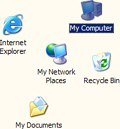 There are two desktop icons settings in Windows XP, which determine how your icons are lined up and positioned: the Align to Grid setting will be discussed in the next tutorial; this tutorial will explain what Auto Arrange is, and how to enable or disable Auto Arrange for your desktop icons. Another setting, discussed in a later tutorial as well, is the sorting order of your desktop icons: note that sort order has no real impact on Auto Arrange. What is Auto Arrange? Although your desktop is just a special folder, its behavior is completely different when you see icons on the desktop (when all your windows are minimized).
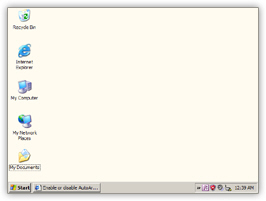 If the Auto Arrange feature is enabled for your desktop in Windows XP, icons will be automatically arranged from top left to bottom right, following the invisible grid that aligns icon.
If you try to move an icon away, you will be able to change the order in which the icons are displayed on the desktop, but not the consecutive line up in which they are arranged.
Desktop icons are basically "snapping" to the nearest available spot on an invisible grid.
This allows you to keep your icons in order, and avoid having icons shown outside the viewable area of the desktop (which can happen when you change your screen resolution).
Enable Auto Arrange desktop icons in Windows XP
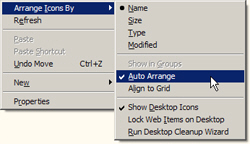 To see if Auto Arrange is enabled, or to enable Auto Arrange, right-click on an empty area of the desktop. From the context menu, choose Arrange Icons By to reveal the submenu: if a checkmark is displayed next to Auto Arrange, this means that Auto Arrange is currently enabled.
Otherwise, click on Auto Arrange to enable it - Windows XP will place a checkmark next to Auto Arrange and apply the change in settings to all the icons on your desktop.
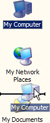 You can now rearrange the order of your desktop icons, but you cannot move them anywhere you want on the screen.
After dragging them outside the grid and dropping them in a random location, Windows will "auto arrange" the icons back on the grid, without empty spot.
This is how you turn on Auto Arrange for desktop icons in Windows XP; the rest of this tutorial shows you how to disable, or turn off Auto Arrange.
Disable or turn off Auto Arrange in Windows XP
While Windows XP's Auto Arrange feature is convenient for keeping your icons in order on the desktop, it can be frustrating not to be able to align your desktop icons anywhere you want them on the screen. We will now explain how to disable or turn off Auto Arrange.
To disable Auto Arrange, right-click on an empty area of your desktop: click the Arrange Icons By menu item, and then click on "Auto Arrange" in the submenu.
Windows XP will not shuffle or re-order your icons, so no visual feedback lets you know that Auto Arrange has been turned off. There are two ways to check if Auto Arrange was in fact disabled: right-click again on the desktop, and choose Arrange Icons By to see the submenu" if no checkmark is displayed next to Auto Arrange, this means that the features is disabled.
Another way to confirm that you have disabled Auto Arrange is to simply try to drag icons around the desktop: if they don't snap back into place, it means that Auto Arrange is turned off!
Keep in mind that, if you have painstakingly arranged and ordered icons on your desktop, re-enabling Auto Arrange will randomly (in appearance at least) re-order all the icons on your desktop.